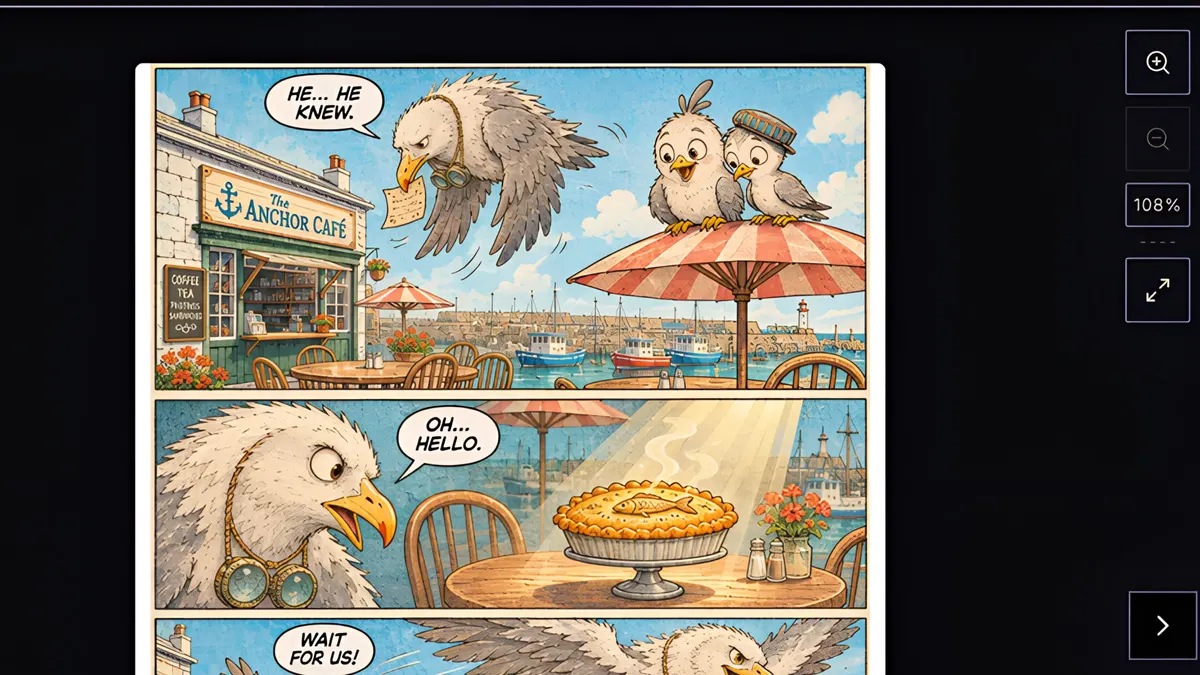
What you’ll learn
Click New Comic, type a title, pick one of 22 languages and one of 12 art styles, and choose a single issue or a series. Then take a quick tour of the comic editor: the Tools menu on the left, your Cast, Assets and Locations, the Script and Comic views, and Sidekick on the right. Describe your story to Sidekick, let it write the script, draw your cast in one click and render a cover and four pages.
Step by step
- 1
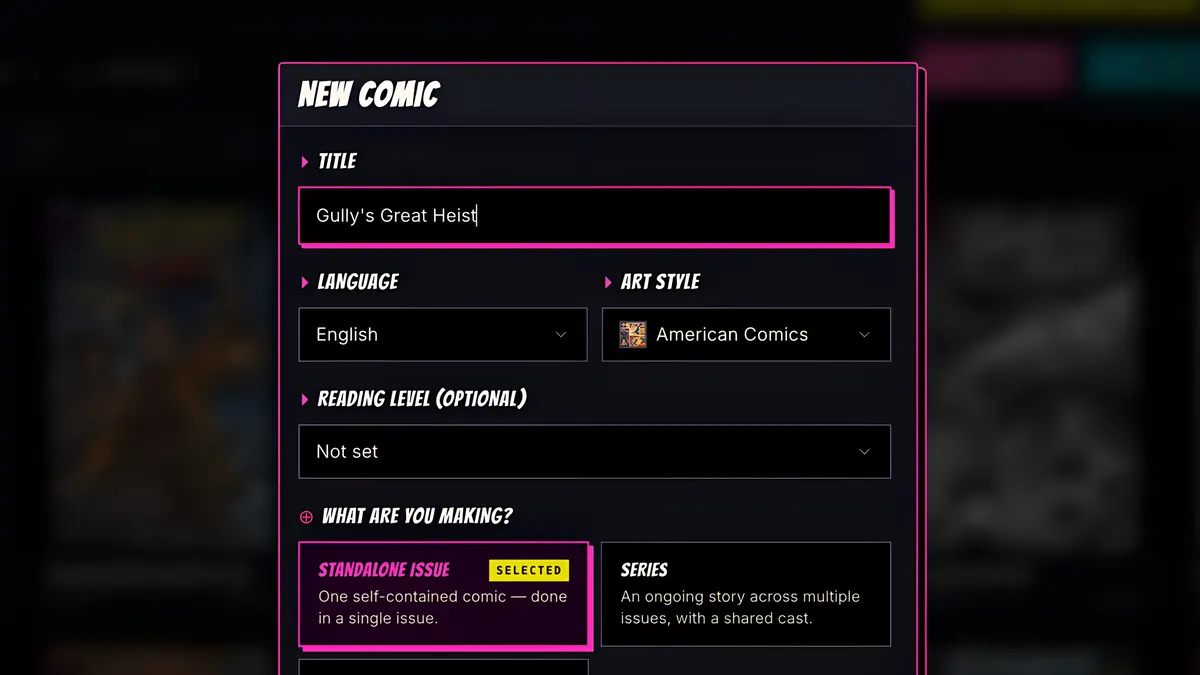
Click New Comic, and type a title.
- 2
Open the language menu. There are 22 languages to write in.
- 3
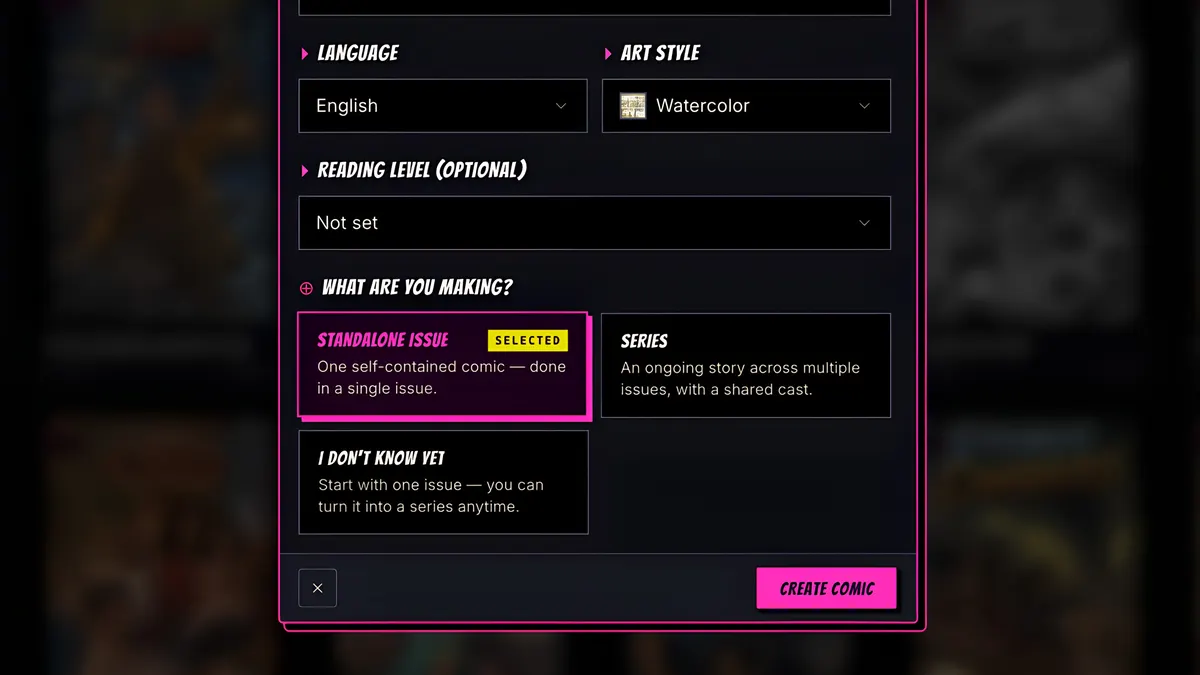
Then open Art style, and pick one of 12 looks, from manga to watercolor.
- 4
Then choose: a single issue, or a whole series with the same cast.
- 5
Then press Create Comic.
- 6
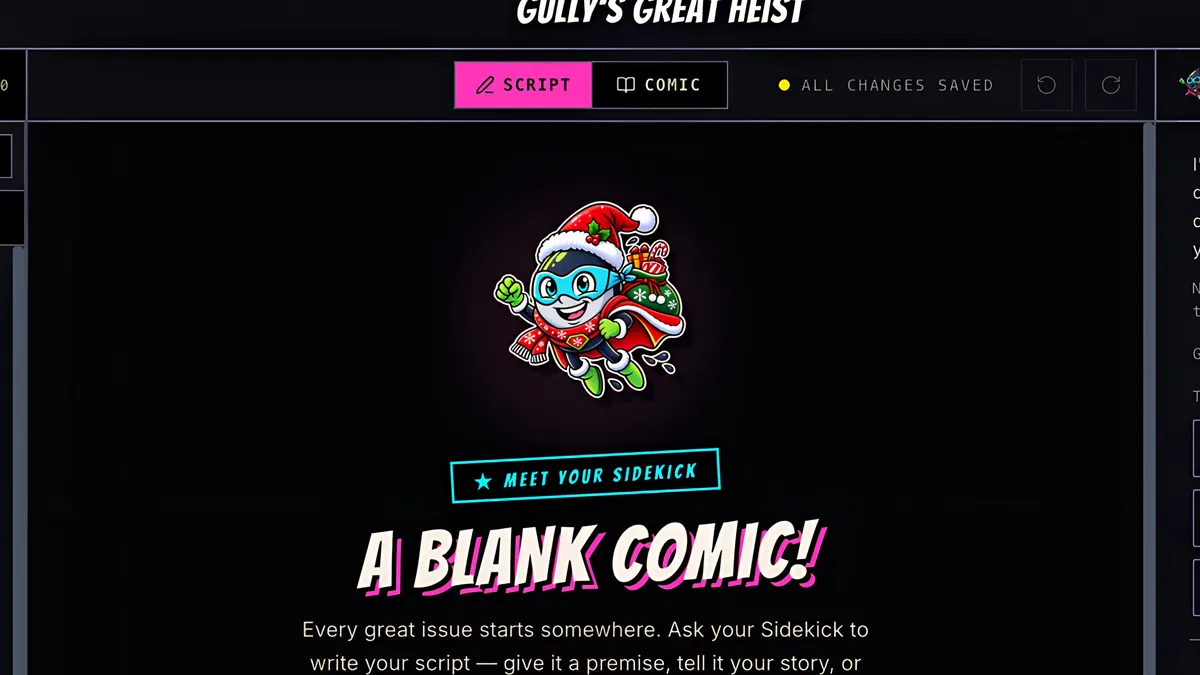
This is the comic editor. Let's take a quick tour.
- 7
On the left is the Tools menu: everything you can do to the issue, or to one page.
- 8
Next to it are your Cast, Assets and Locations.
- 9
At the top, switch between the Script, where you write, and the Comic, where you see the pages.
- 10
And on the right is Sidekick, your AI helper.
- 11
Describe your story to Sidekick, and send it.
- 12
Sidekick writes the script, for free.
- 13
Draw your cast in one click, then render the pages.
- 14
And there's your comic: a cover and four pages.