What you’ll learn
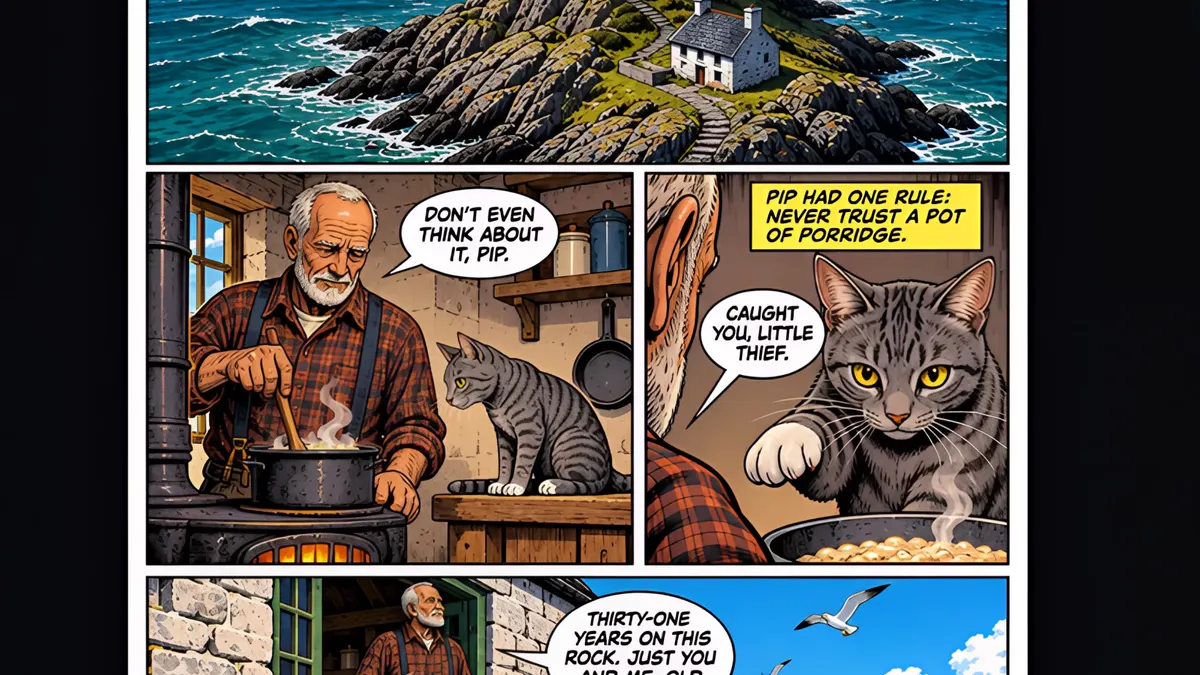
In the Script view each page is a stack of panels with a setting, a description of what the reader sees, captions and dialogue. Add a line of dialogue, choose who is speaking, write a narrator caption, and use Version history to name and save a version before a big rewrite. Your new lines are lettered straight into the art when the page is drawn.
Step by step
- 1
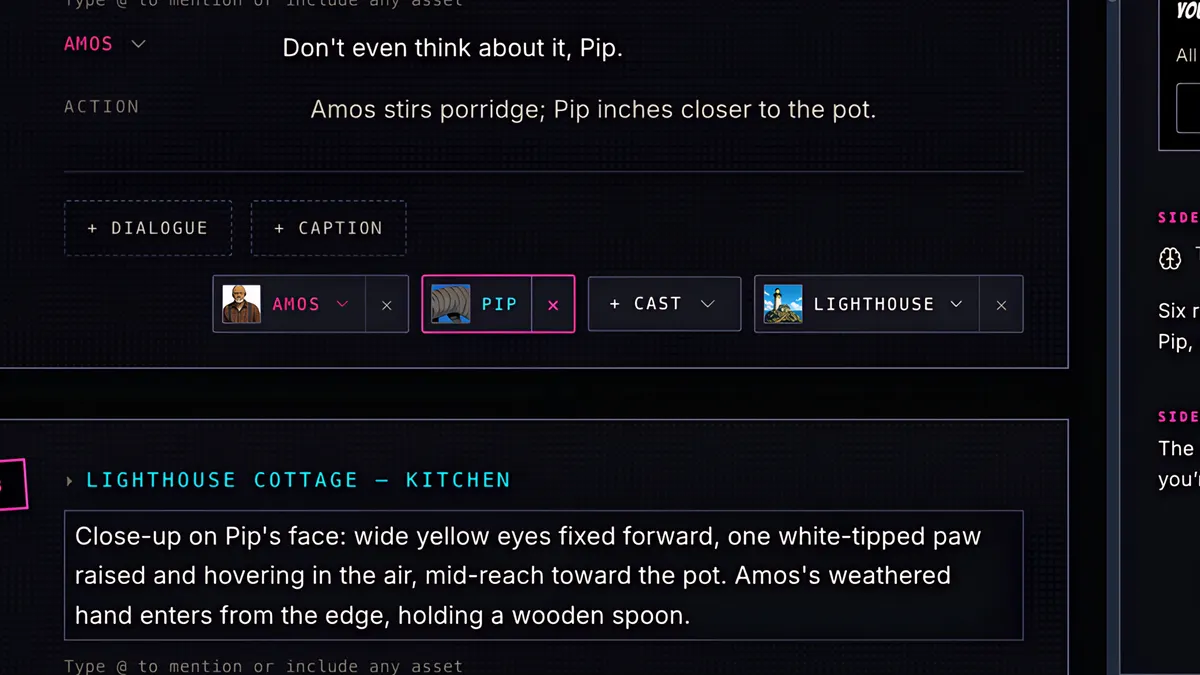
In the Script view, each page is a stack of panels: setting, description, captions and dialogue.
- 2
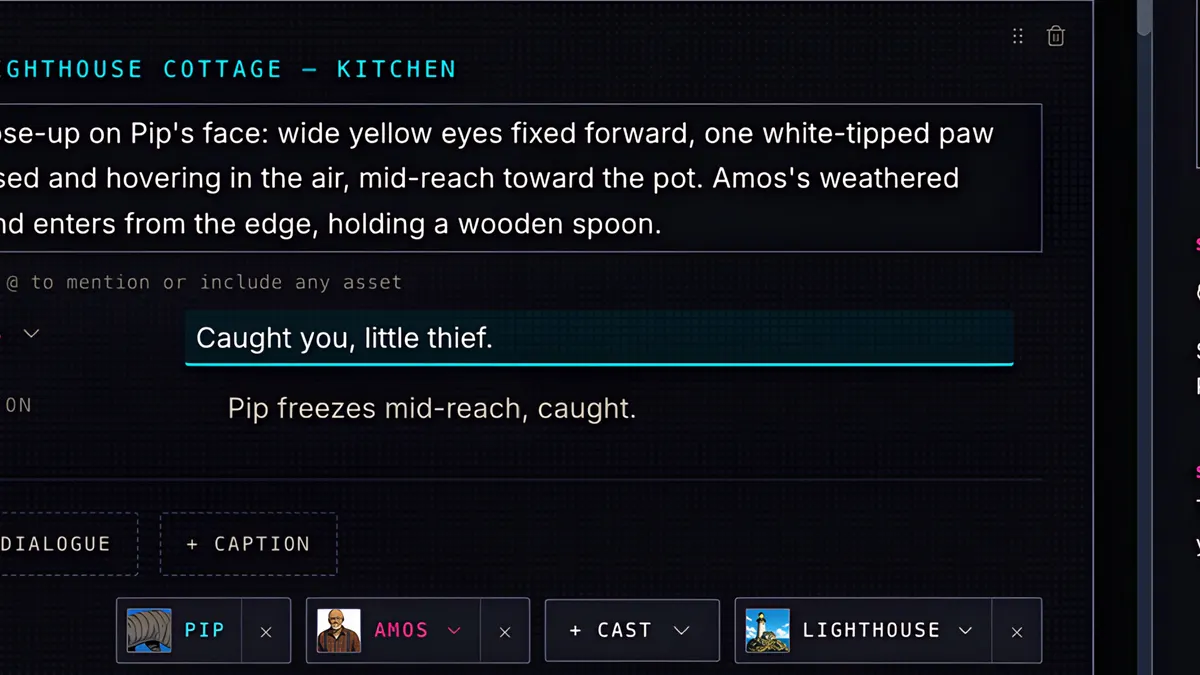
To add a line of dialogue, click + Dialogue, pick who is speaking from your cast, and type the line.
- 3
Everything saves as you type, and Undo and Redo are always up here.
- 4
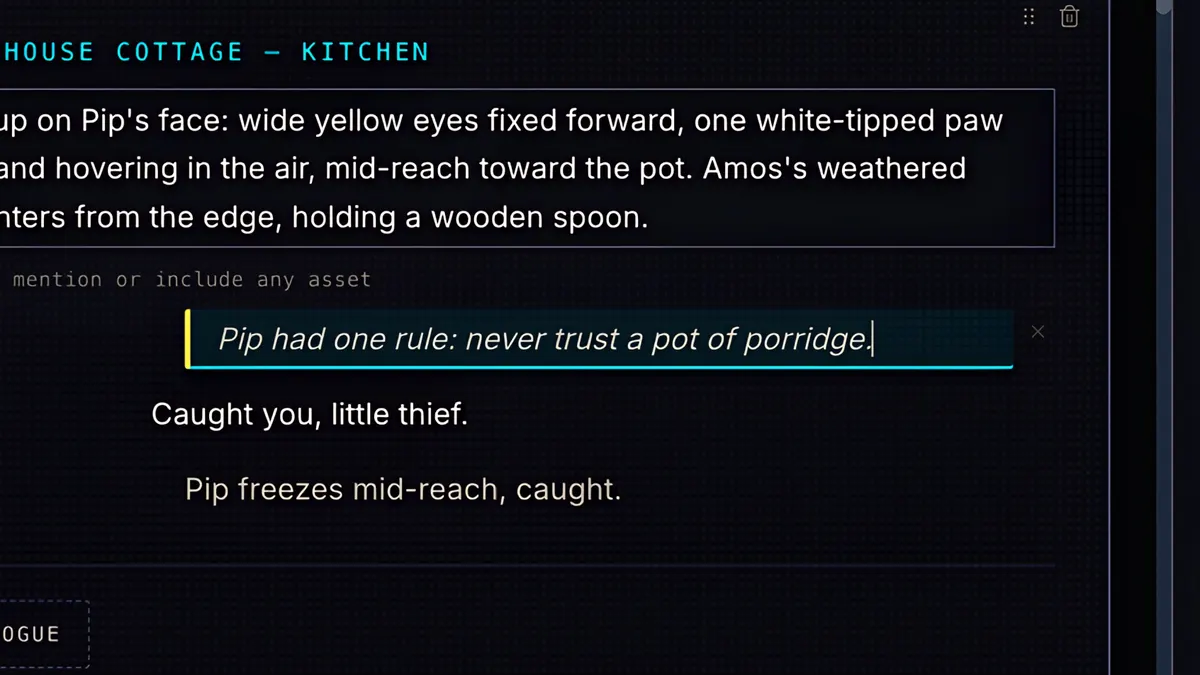
Captions work the same way. Click + Caption, and write the narrator box.
- 5
Under Tools, Version history keeps automatic snapshots of your script and its artwork.
- 6
Name a version before a big rewrite, save it, and you can preview or restore it any time.
- 7
When the page is drawn, your new lines are lettered straight into the art.