What you’ll learn
Every issue gets a front and a back cover. Open the back cover script, describe the scene and any blurb or tagline, then generate it from the Comic view. The text is lettered exactly as written, ready to export, print or publish.
Step by step
- 1
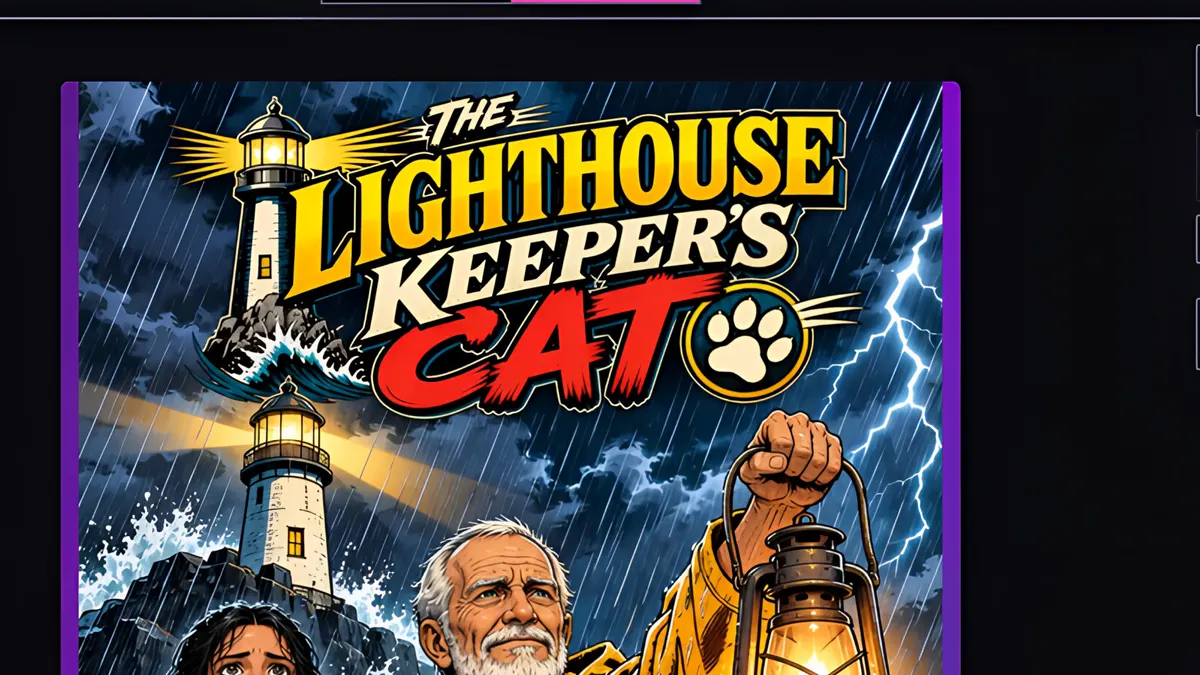
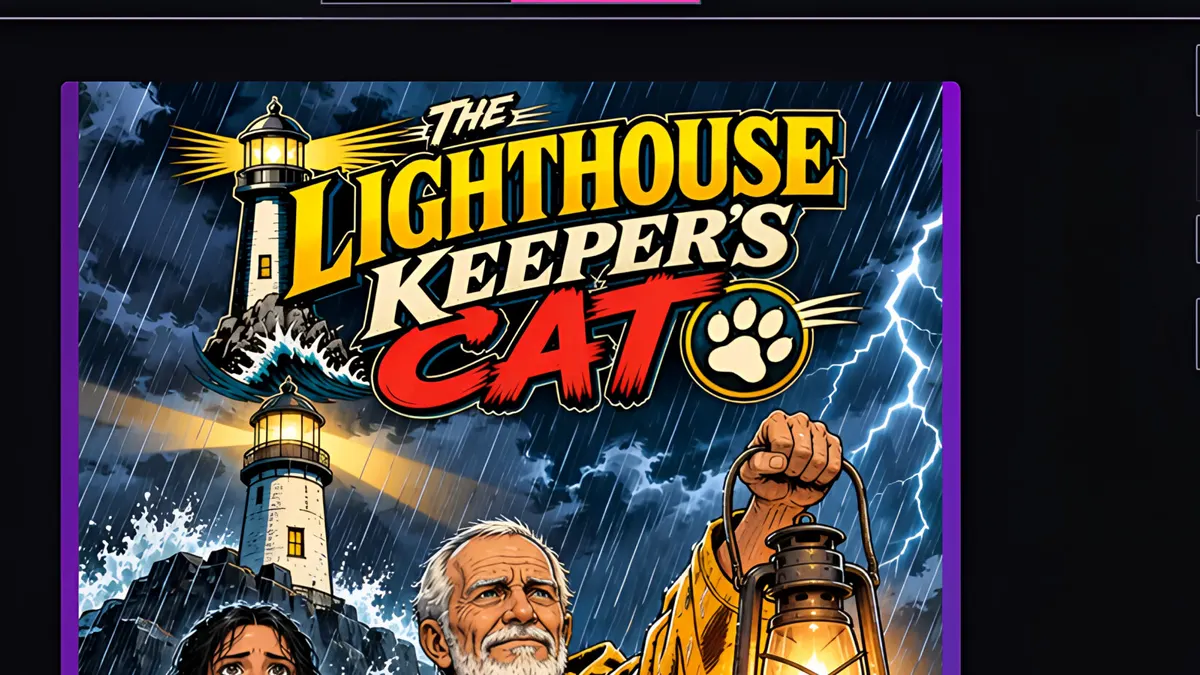
Sidekick drew the front cover when it rendered the issue, with the title lettered right into the art.
- 2
Now the back cover. It hasn't been drawn yet.
- 3
Click Edit Back Cover Script.
- 4
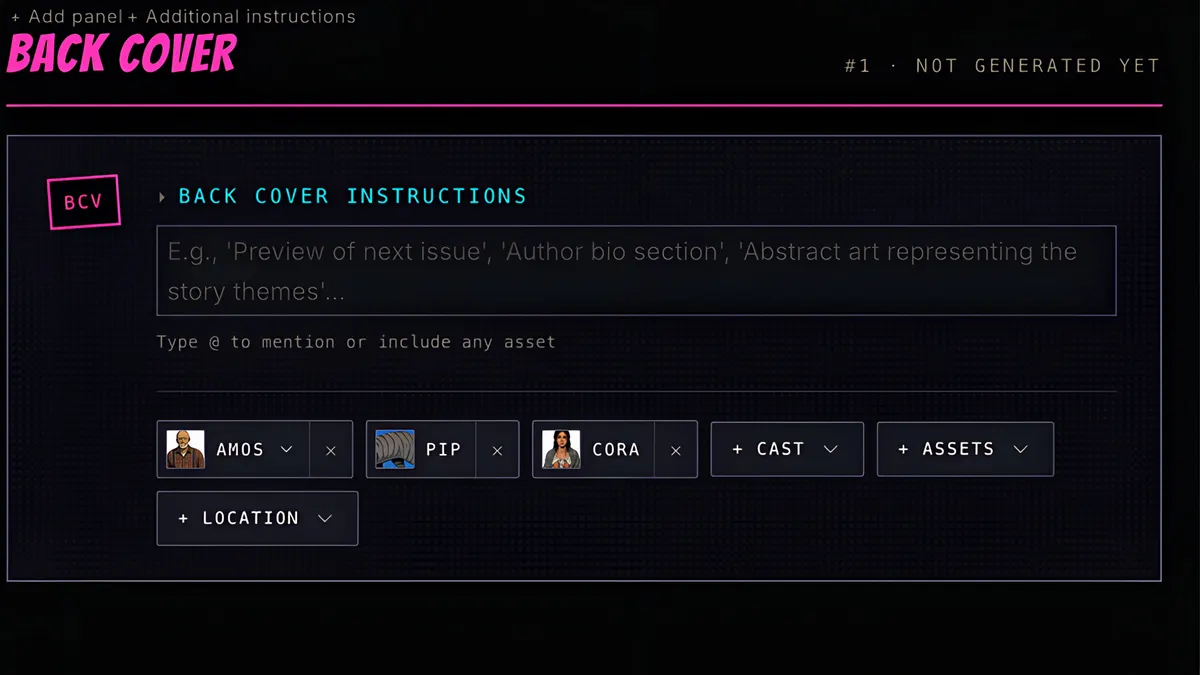
Describe what you want: the scene, plus any blurb or tagline to letter on it.
- 5
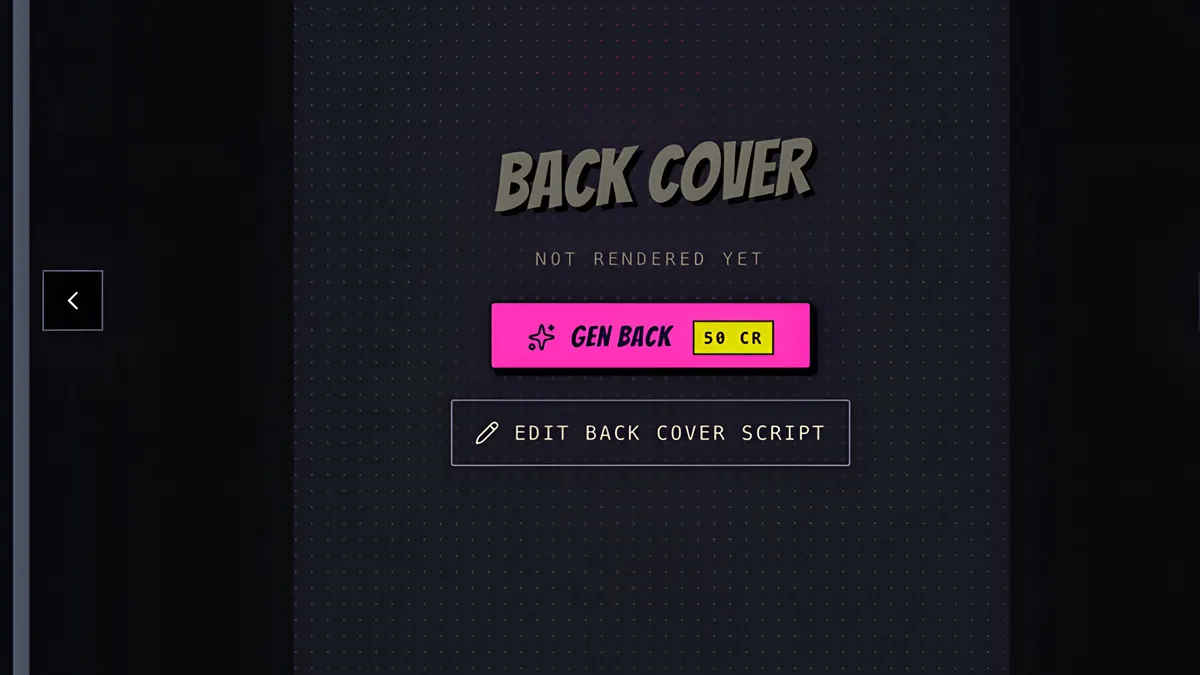
Back in the Comic view, press Gen Back. Covers are 50 credits.
- 6
About a minute later, the back cover is ready, with the tagline exactly as written.
- 7
Front and back, ready to export, print or publish. Don't like a cover? Edit its script and generate it again.