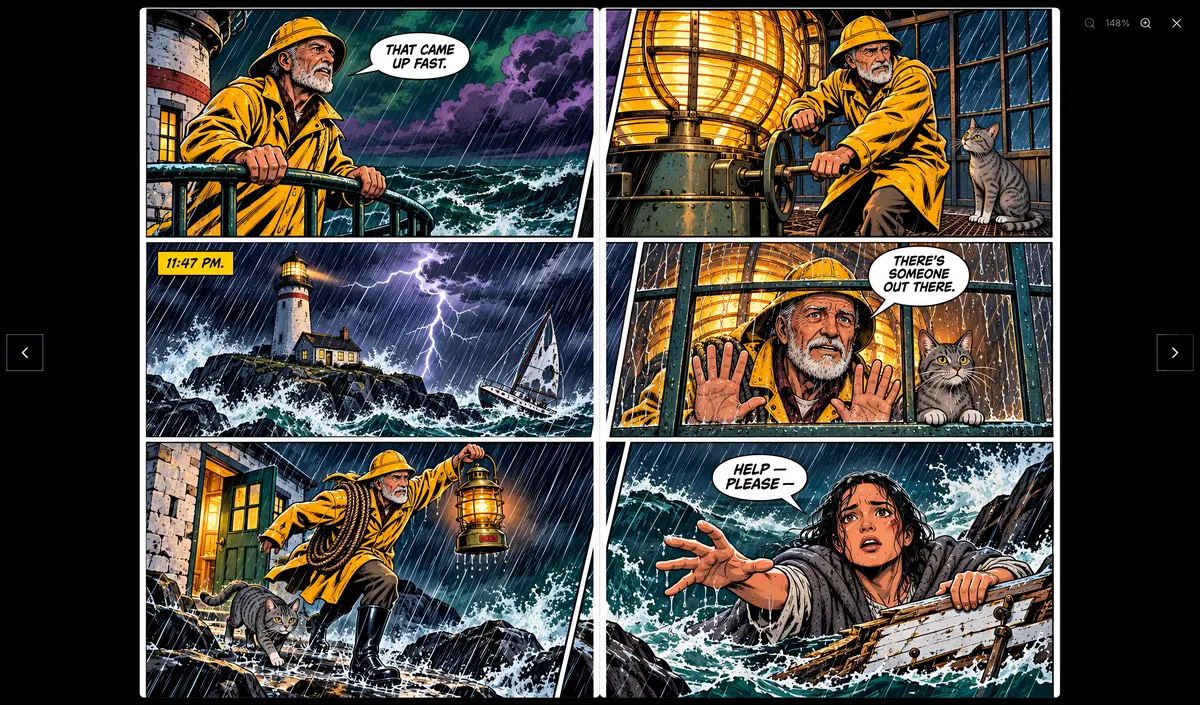
What you’ll learn
In the Script view every panel lists the characters in it. Click a character chip to choose what they wear in that panel, for example storm gear for a storm scene while every other panel keeps the default look. Glasses, hats and helmets work the same way.
Step by step
- 1
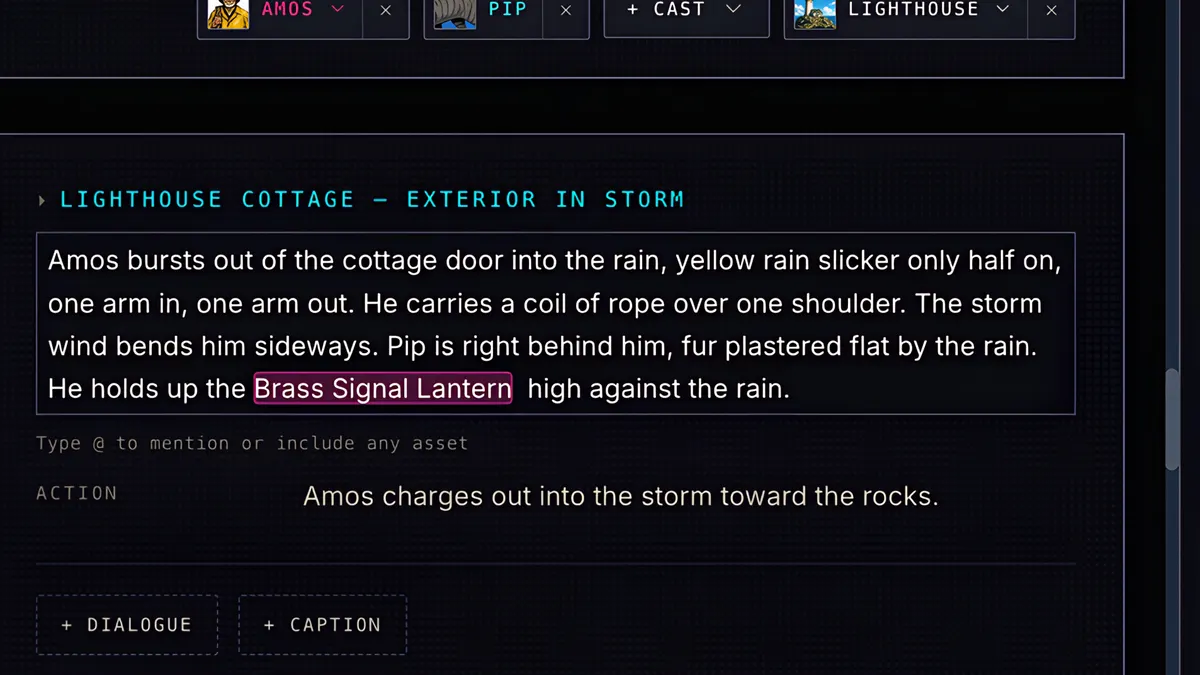
In the Script view, every panel lists the characters who appear in it.
- 2
Click a character's chip to choose what they wear in this panel.
- 3
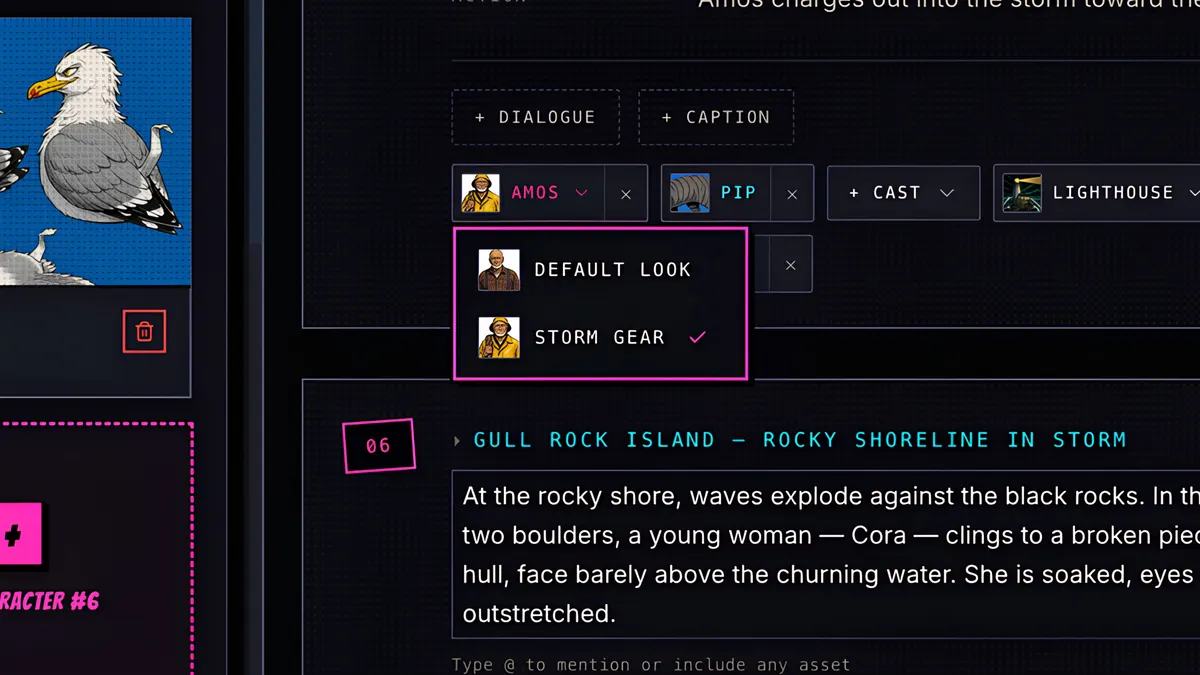
For the storm scene, pick Storm Gear.
- 4
The chip now shows the new outfit. Every other panel keeps his default look.
- 5
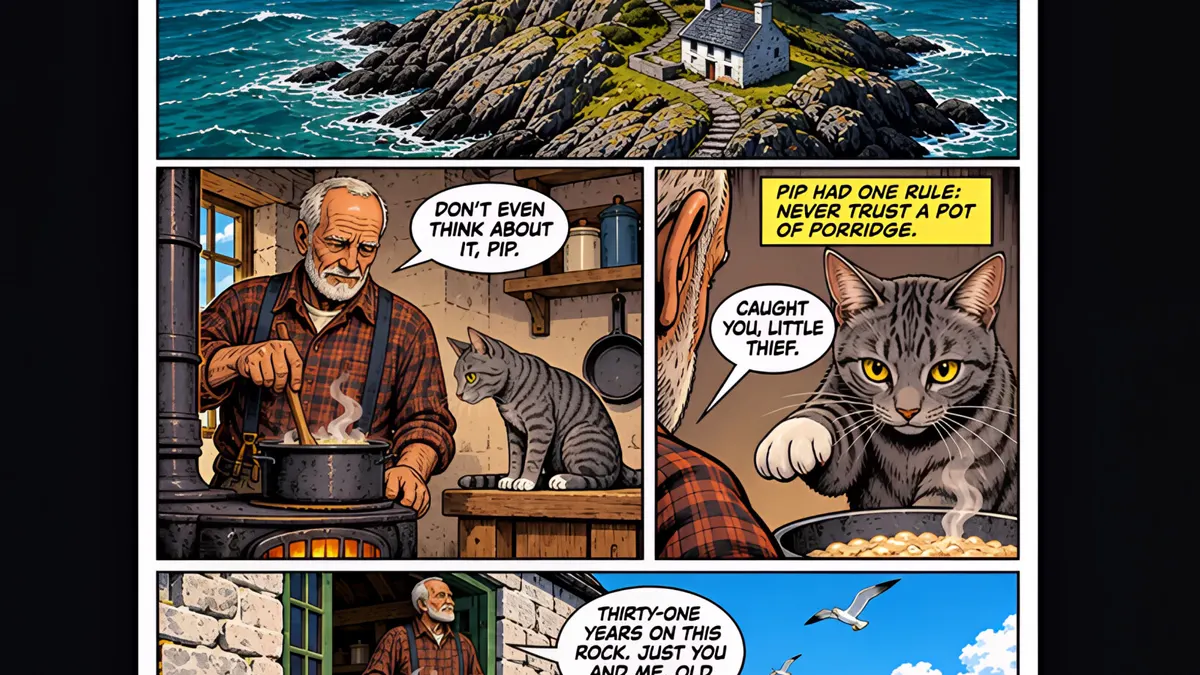
So on page one, in the kitchen, Amos wears his flannel shirt, and when the storm hits, he is in his yellow storm gear, lantern in hand.
- 6
Same face, the right outfit, panel by panel. Glasses, hats and helmets work the same way, so a character can take them off for just one scene. You can also ask Sidekick to change a look for you.