What you’ll learn
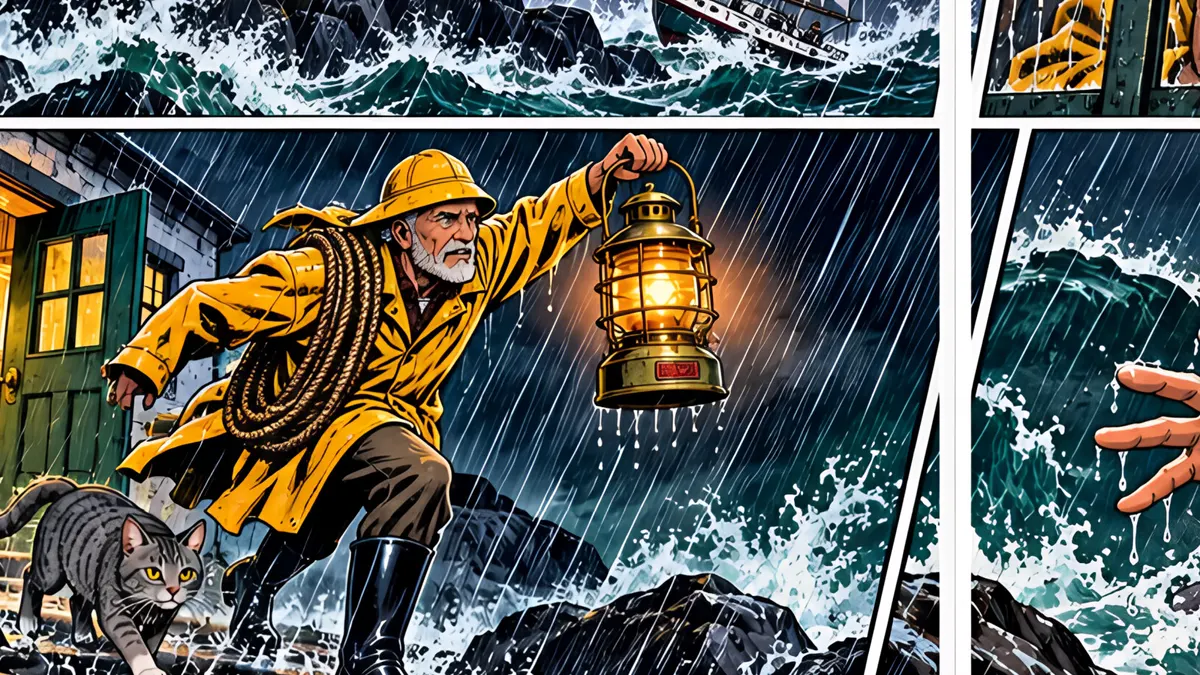
Open the Assets rail, add an asset, describe its shape, materials and details and generate a reference image. In any panel description, type @ and pick the asset to tag it, so the prop is drawn the same way every time it appears.
Step by step
- 1
Open the Assets rail, and click Add Asset.
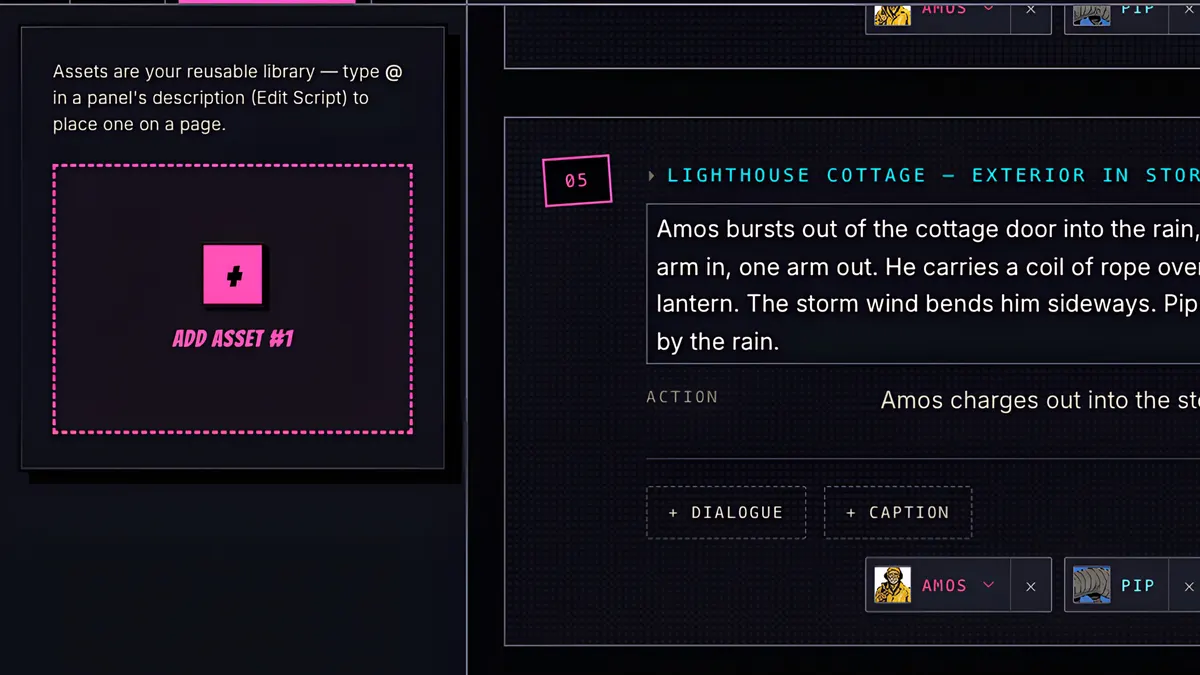
- 2
Name it, and describe it: the shape, the materials, the colours, the little details.
- 3
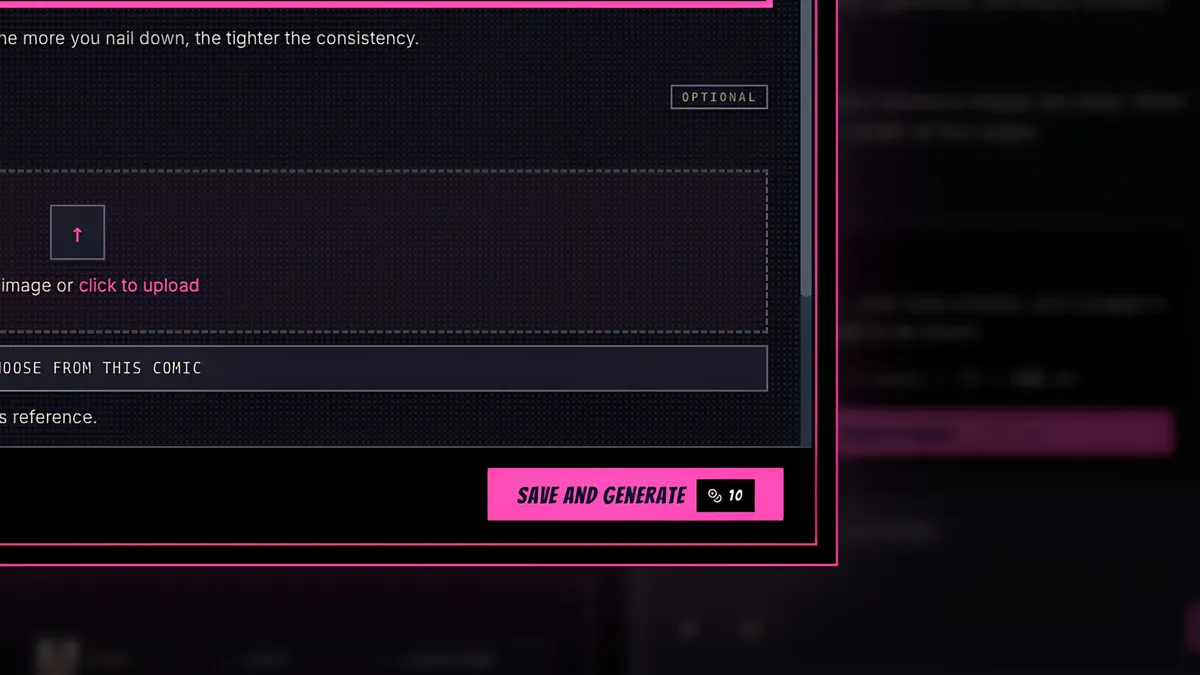
Save and Generate, for 10 credits.
- 4
Here's Amos's brass signal lantern, drawn as a reference image.
- 5
Now it's in your asset library.
- 6
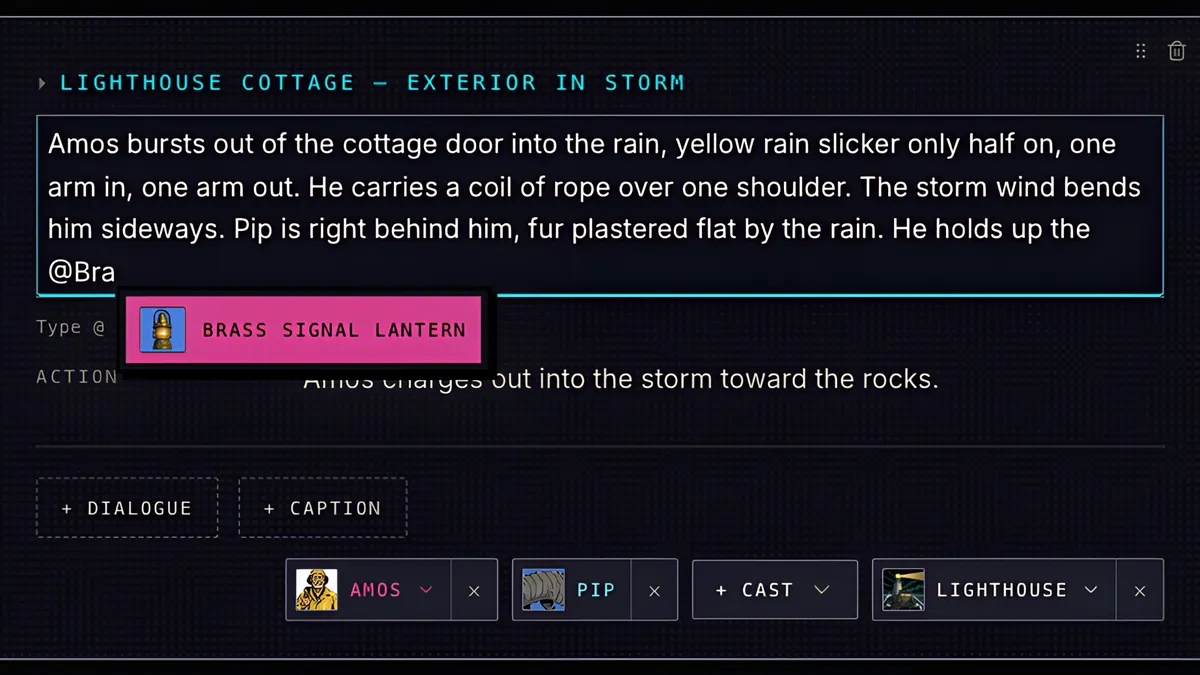
In any panel description, type the at sign, start typing its name, and pick it from the list. The prop is now tagged in that panel.
- 7
And here it is, in the storm, drawn exactly like its reference. Vehicles, weapons, gadgets and logos all work the same way.